Turn AI music into authored video releases.
Add edited clips, lyrics, visualizers, particles, text, images, and motion so AI-generated tracks have the creative video authorship needed for monetization workflows.
At a Glance
Audio-first video authorship for AI music, lyric releases, and visual social content.
- Transform generated tracks into edited video assets
- Spectrograph, text, lyrics, image, and particle layers
- Docked or detached live preview in landscape or portrait
- Standard JSON projects or portable .vizpkg packages
Product Overview
A desktop workflow for adding meaningful visual authorship to AI-generated music.
What vizmatic does
Turn generated tracks, songs, podcast segments, or promo audio into authored MP4 videos using local media, stock clips, lyrics, visualizers, images, text, and particles.
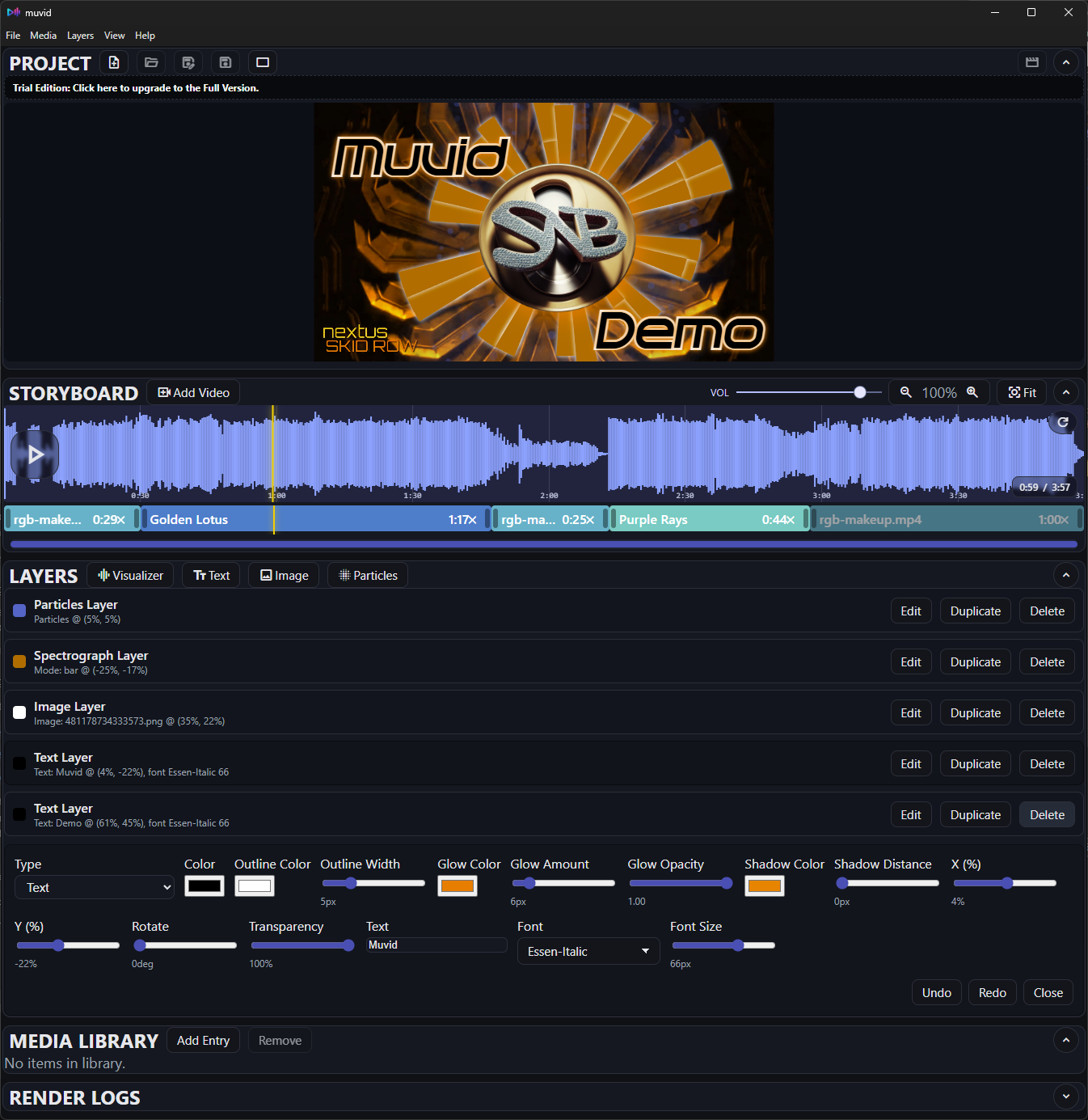
- Audio waveform timeline with zoom, seek, volume, and mute
- Storyboard clips with trim grips, colors, and fill methods
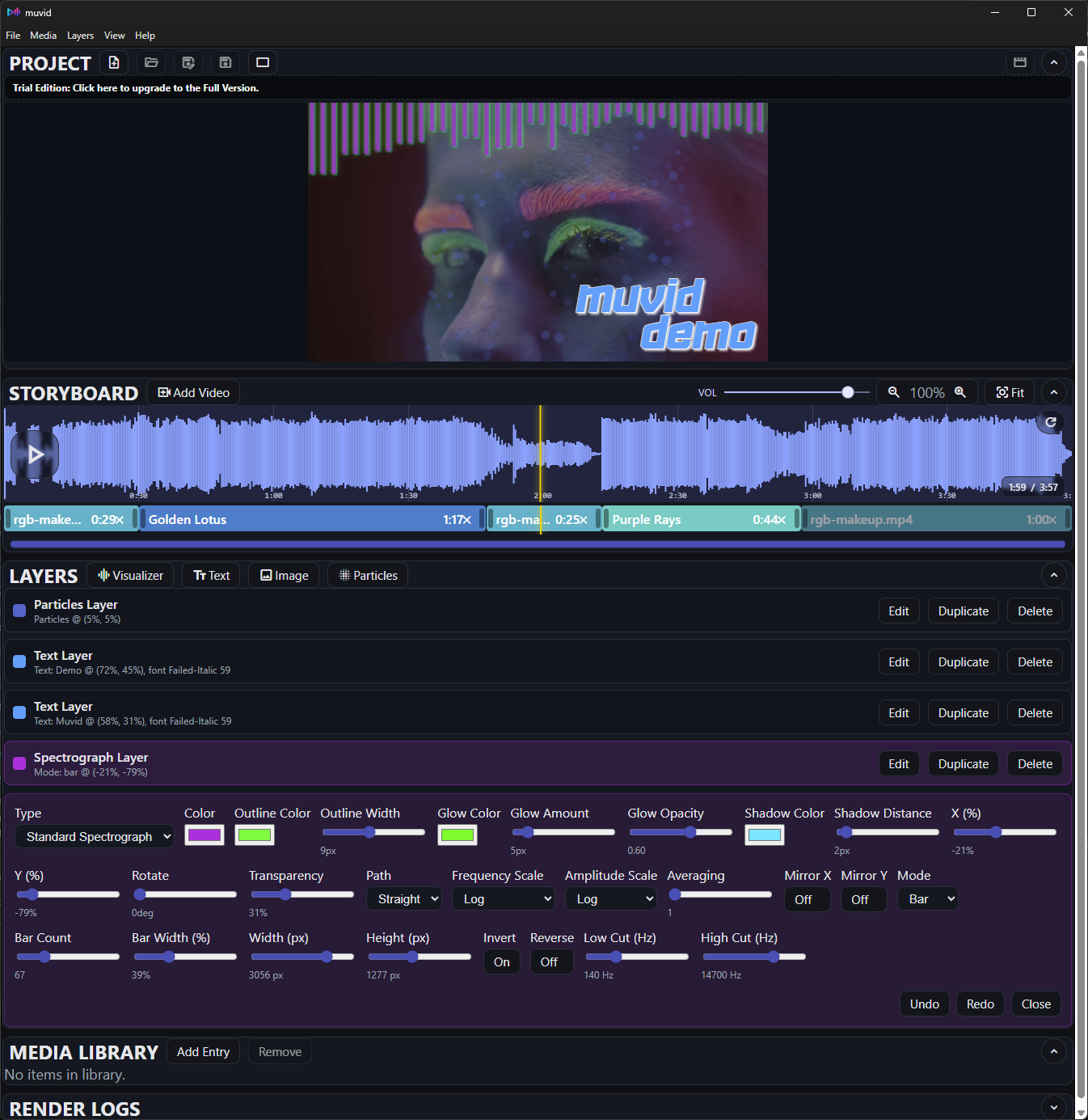
- Layer editor with profiles, filters, masks, glow, shadow, and motion
- Creator-controlled composition for YouTube and social releases
Built for monetizable releases
Add enough deliberate video creation to make AI-generated audio feel like a finished release instead of a static upload.
- Timed lyrics, captions, artist names, logos, and callouts
- Audio-reactive visuals, particles, masks, and flame effects
- Local or stock video layers with reusable media management
- MP4 export for landscape and portrait publishing
Authorship Workflow
From generated track to a finished video release.
Storyboard timeline
Reorder clips, trim for pacing, and build a deliberate visual timeline around the audio.
- Drag clips to reorder
- Trim start/end with glowing bracket handles
- Loop, Ping-Pong, or Stretch fill methods
- Context menu: rename, duplicate, color, remove
Layer controls
Keep authorship elements editable, reusable, and audio responsive throughout the edit.
- Spectrograph, text, lyrics, image, and particle layers
- Tabs for type, layout, style, motion, renderer, and filters
- Reusable tab and category profiles
- Glow, shadow, gradient, blend, bounce, and camera shake
Preview + orientation
Lock output sizes to your target format while keeping the preview flexible.
- Landscape: 1920x1080
- Portrait: 1080x1920
- Dock preview top, bottom, left, or right
- Detach preview into a separate window
Lyrics + render
Create timed lyric cues and export when the project is ready.
- Lyrics timeline with draggable cue capsules
- Import .lrc and .srt lyric files
- Choose output path at render start
- Progress, ETA, logs, and cancel support
Creator Toolkit
Focused controls for adding visible creative decisions to each release.
Media Library
Organize reusable video, audio, and image assets outside the active storyboard.
- Virtual folders, labels, tags, and metadata
- Preview media before adding it to a project
- Missing-file detection and relocation workflow
Stock Media
Browse Pexels video clips from the Media Library and bring selected clips into managed storage.
- Search, paged results, thumbnails, and preview
- Landscape, portrait, and square-oriented searches
- Attribution and source metadata saved with downloads
Flame Effects
Use WebGL flame controls on supported text, image, and spectrograph layers.
- Presets, intensity, detail, and edge-mask behavior
- Previewed directly in the Electron compositor
- Designed for graphic accents and reactive edges
Portable Packages
Save standard project JSON files or bundle referenced media into portable .vizpkg packages.
- Includes project JSON and referenced media files
- Moves work between machines with fewer missing paths
- Extracts into a temporary project cache when opened
Advanced Settings
Set install-level defaults for projects, assets, renders, managed media, and stock media access.
- Default project, asset, and render folders
- Managed Media path for app-managed downloads
- Pexels API key and default orientation settings
MP4 Export
Render finished videos through an ffmpeg-backed pipeline with progress feedback.
- MP4 container with H.264 video and AAC audio
- Landscape 1920x1080 or portrait 1080x1920 canvas
- Progress, ETA, elapsed time, logs, and cancel support
Troubleshooting
Fast fixes for the most common setup questions.
Render fails with font errors
Ensure the font is in client/public/fonts and the font name matches the UI dropdown.
Spectrograph not visible
Verify audio is loaded and a spectrograph layer exists. Press Play once to initialize audio.
Missing media
If a file path is missing, the clip will highlight. Re-add the file or update the path.
Need the full walkthrough?
Read the vizmatic User Guide for portable packages, lyrics, layer profiles, Advanced Settings, and licensing.
Purchase License
Complete the form below to receive your license key